 KIANEWS
How to Unlock the Bootloader on Your Android Phone
14. 06. 2020 Sunday / By: Robert Denes / The Key / Exact time: BST Print this page
Regarding the history, we’re not happy, but We’ll share with you several clever ideas for unlocking phones and computers user accounts, hidden storage, and android, iOS mobile operating system, Nokia phones in the coming days! Read on for the article and come back in the next few days.
Unlocking your bootloader is the first step towards rooting your phone and installing custom ROMs. It’s also the place where now people run into trouble - not because it’s particularly difficult, but because phone manufacturers and network carriers don’t want - or don’t trust - you to unlock it. It's not unlike Android rooting, another superuser practice that manufacturers discourage.
When you root an Android phone, you give yourself superuser access. A superuser is an administrator who has access to more features and functions of a system and can make changes to it beyond its standard behavior. This capability grants more access to the operating system, which means more power over how the device works. It also brings the potential to damage how the device operates.
Android is an open source operating system, although the Google fork of it contains a lot of Google-specific services baked in. Because the core of Android is open source, anyone can build on and modify it. Now of the time, device manufacturers modify the OS to create custom Android versions for their phones, add features, and create a polished experience for users. Part of that includes imposing their own rules and restrictions on their custom Android builds.
Phone service carriers and device manufacturers such as Samsung, LG, Huawei, Xiaomi, and others, put modifications and restrictions on their phone products.
How to Enable OEM unlocking
Before you can actually unlock your phone, you need to enable the OEM unlocking developer feature in Android.
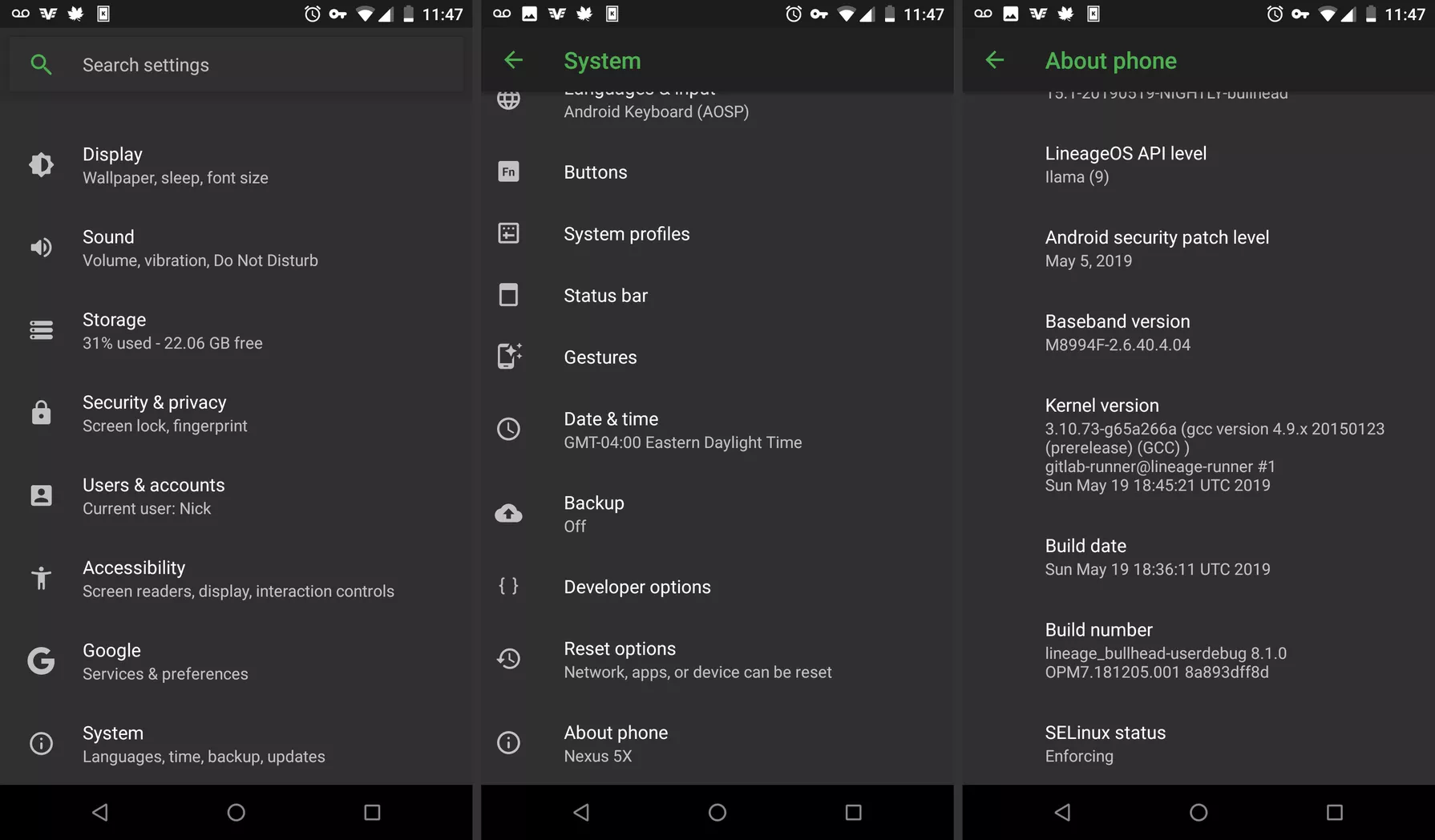
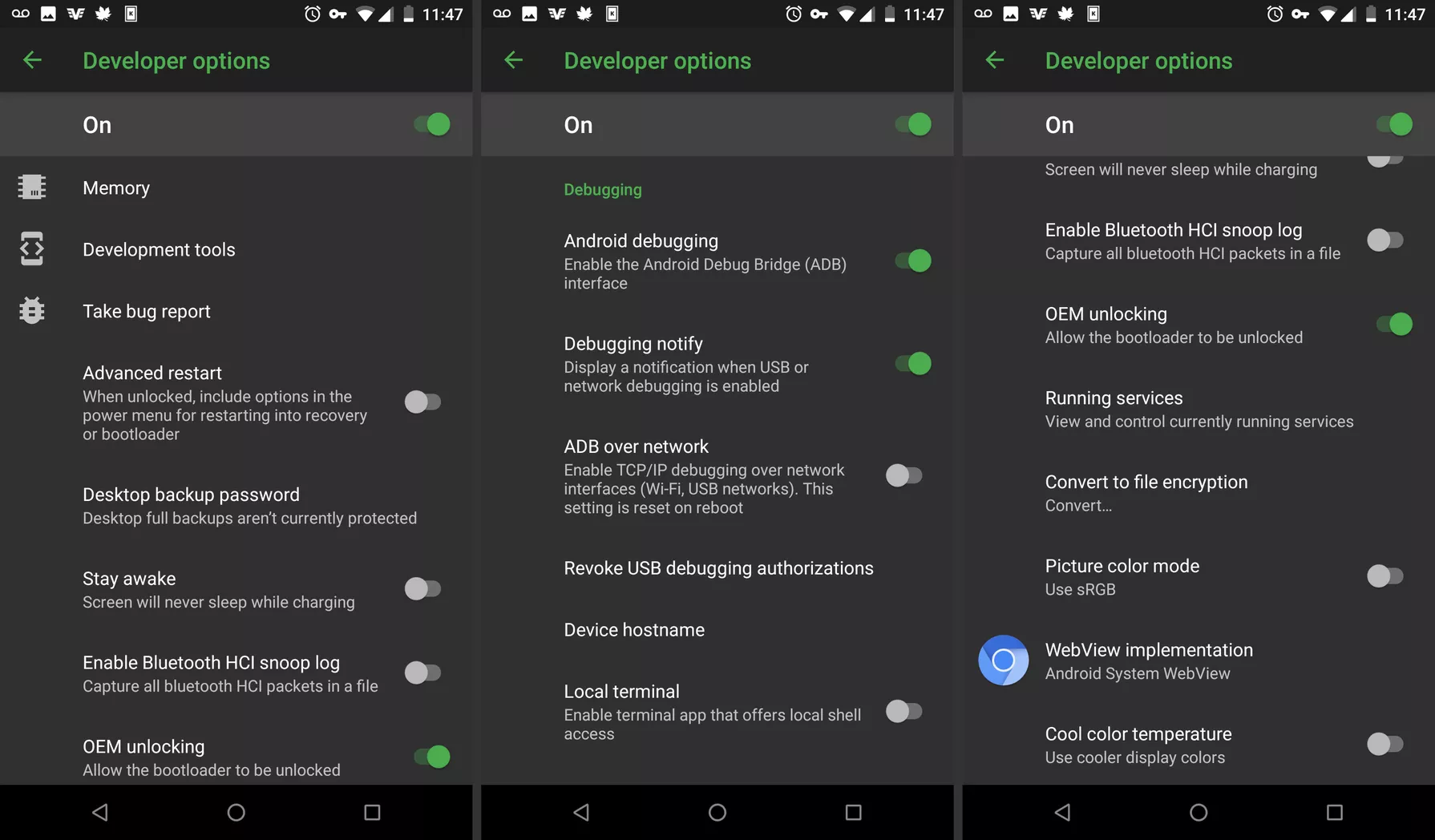
How to Install Android Tools
Enabling OEM unlocking only makes it possible to unlock the device. In order to actually unlock it, you’re going to need a couple of Android developer tools from Google. These are freely available, and they’re simple to use.
WindowsHow to Unlock With Fastboot
You’re ready to unlock your phone’s bootloader with the Fastboot tool that you just downloaded. Before you go any further, you should see if your phone requires a code from the manufacturer to unlock it. Here are the instructions for several major phone manufacturers:
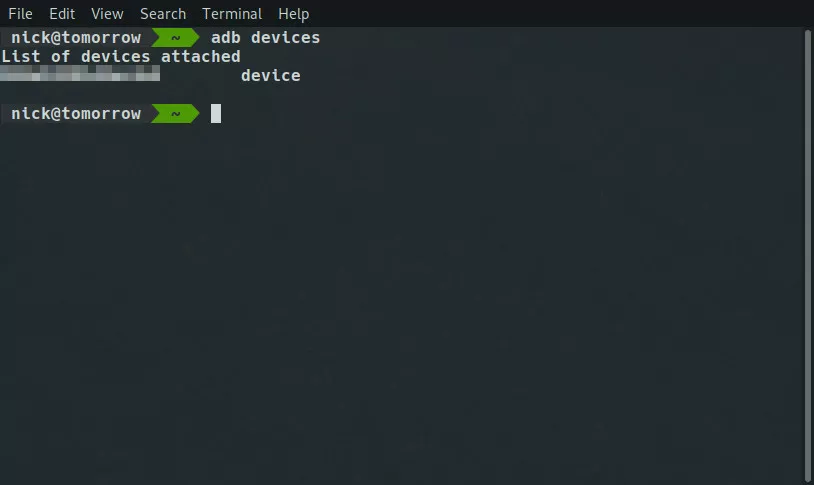
adb devices
You’ll see a message requesting access on your phone. Check the box to always allow the connection, and confirm.
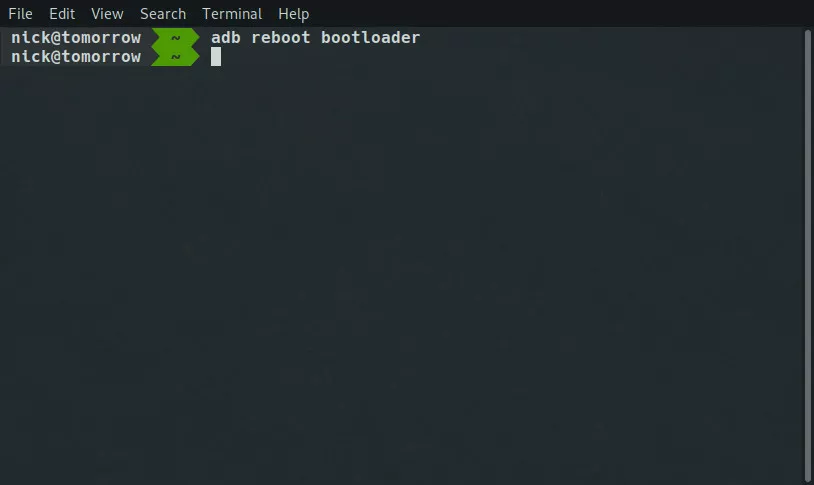
Omit the code, if you don’t need one.
You may be asked to confirm. Do so.
